Sunday, 14 August 2011

Hacker and HKEX

It is a bit surprising that the back up system did not work

Source: Bloomberg news
http://www.bloomberg.com/news/2011-08-11/hong-kong-exchanges-says-website-traffic-exceeded-normal-levels.html

Monday, 4 April 2011

Information leaks

These days, everyone is talking about how to secure his/her personal data, regardless of the place, whether they are stored in your home, office, mobile phone, tablet computer or even the "cloud"
They want a more secure gmail, a https enabled Facebook or even an encrypted harddisk. Nevertheless, please have a second thought, are you give other people with information at no cost?
Think about your Facebook page, are you telling everyone your family members, your job or even the last unpleasant experience with the local bank? These things could be a treasure for the identity thefts. So everyone needs to stay alert and don't make dumb things.
Sunday, 3 April 2011

Rogue Android app sent personal info to legit version's developer, claims AVAST

Computerworld - A malicious Android app that shamed users for pirating software transmitted personal information to a URL controlled by the legitimate app's developer, a security company said today.
http://www.computerworld.com/s/article/9215437/Rogue_Android_app_sent_personal_info_to_legit_version_s_developer_claims_AVAST

I always keep thinking, what makes a phone with Android OS can secure my personal information better than iPhone does?
The answer is very likely to be "Not installing any of the 3rd party apps"

Wednesday, 2 February 2011

eBanking

I like eBanking, it helps me to save a lot of time by queuing in the branch. However, some people feel worry about its security, they don't want their money be stolen via Internet.

Here are the questions I will ask myself to ensure I am under enough protection.

* Am I connecting to the right place?
You will have to look at its digital certificate. It has to be verified by a trusted third party authentication service provider (example: Verisign). Banks alway suggest you to look for the GREEN bar next to the URL.

* Am I using a secured connection?
Most people will install Wifi router at home, you will have to ensure you have secured your wireless realm with enough encryption.

* Am I using a clean computer?
Basically, my rule is "use my own computer". Using public computer in cafe shop or library is a bit risky. We shouldn't take this unnecessary risk, right?

* Am I using a strong password?
Most banks will suggest how you can construct a strong password. Look at their pages for their advice.

I know most people are good at this topic and I am just here sharing my little thought here. Welcome for more input.

Saturday, 4 December 2010

Enhancing security at Coffee Shop (B)

"Oh, what if I don't have a VPN server at home? What can I do?"

The main issue of Internet link provided by Coffee shop (Public network) is that everyone can access the Access Point (AP)

* Web
You might know it is best to access a website with HTTPS (Hypertext Transfer Protocol Secure) instead of HTTP. But how?

For Chrome browser: "Use HTTPS"
https://chrome.google.com/extensions/detail/kbkgnojednemejclpggpnhlhlhkmfidi

For Firefox browser: "HTTPS Everywhere"
https://addons.mozilla.org/en-US/firefox/addon/229918/

It is also important to know that Facebook offers https access, so installing the "force https" when accessing facebook.com will let you enjoy a more secure web browsing experience.

* Email

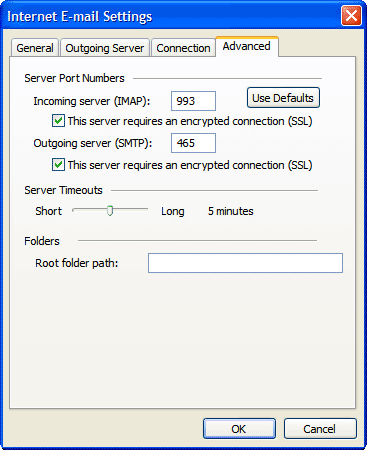
Email is one of the oldest product since Internet was invented. All messages are sent via plain text, which obviously not suitable for today's security standard. Therefore, it is necessary to further enhance the security by introducing Transport Layer Security (TLS). The network ports used are listed as below

- TCP 465 SMTP over TLS/SSL

- TCP 587 SMTP over TLS/SSLSTART

- TCP 993 IMAP over TLS/SSL

- TCP 995 POP3 over TLS/SSL

# Pictures are provided by mail.google.com

If we take Gmail as an example, we can find the setting is easy to make.

Related material: Enhancing security at Coffee Shop (A)
http://infosecmatrix.blogspot.com/2010/12/enhancing-security-at-coffee-shop.html

Friday, 3 December 2010

Enhancing security at Coffee Shop (A)

WiFi is a two-sided sword, it provides a great mobility of Internet access for us, but it also allows us to intercept others data easily. This is the fact, the only thing that we can do is to try our best to protect our data from being exposed instead.

The best way is to make a virtual private network (VPN) connection to your home desktop/server. This solution will let you to enjoy the same security as you are at home. However, for sure, you have to confirm the security of your regular channel from home to external servers.

The following diagram illustrate the solution.
Insecure way: connecting via Insecure Channel
More secure way: connecting via Secure Channel (VPN) to your home


Further reading: How to setup PPTP server with your Windows XP

Related: Enhancing security at Coffee Shop (B)

Wednesday, 1 December 2010

How to setup PPTP server with your Windows XP

Note: If you just need a quick look of how to setup the PPTP server with WinXP, just skip the introduction part and start with the pictures.

I need to access my home desktop through a secure communication channel, what can I do?

If you want to setup a VPN server at home, you can consider to choose either PPTP or SSL VPN. Setting up a SSL VPN server involves maintaining a Certificate Authority (CA), Registration Authority (RA), Certificate Revocation List (CRL) and Digital Certificates. These names are scary and are not friendly to many people......

Therefore, we will go for an easier way, which is setting up a PPTP VPN server. But now, we have come up with another question, what platform should we build on, this can be either


  • Windows
  • Linux
  • Dedicated firmware (DD-WRT)

Linux is powerful but not many people will build a linux server or VM at home.
DD-WRT is easy for user to setup but it requires the user to modify the firmware of their router.
Windows is popular and user can deploy the setting with just a few minutes. Therefore, it makes the ideal choice to do the job.

Step 1. OPEN the Network Connection

Step 2. BUILD a new connection

Step 3. CLICK "Next" 

Step 4. SELECT advanced connection

Step 5. SELEC accept incoming connection

Step 6. SELEC allow virtual private connection

Step 7. CLICK "Property" to make advanced setting

Step 8. INPUT the IP range that is free of your current network

Optional: You may check the property of this profile if encryption is enabled, you can also maintain a list of PPTP users at the same page. 


At this point, your computer is ready to provide PPTP VPN service to yourself and others.